Modern computers are designed to operate reliably for many years. However, like all physical equipment, hardware components experience wear over time. Dust accumulates, cooling systems become less efficient, storage devices age, connectors loosen, and unexpected electrical problems can occur.
Fortunately, many hardware failures don't occur without warning. Recognizing common symptoms early often allows users to address small issues before they develop into more serious problems.
While no maintenance routine can completely eliminate hardware failures, adopting good habits can significantly improve reliability and extend the useful life of a computer. Understanding common hardware problems also helps users determine when basic troubleshooting may solve an issue and when professional repair is necessary.
1. Overheating
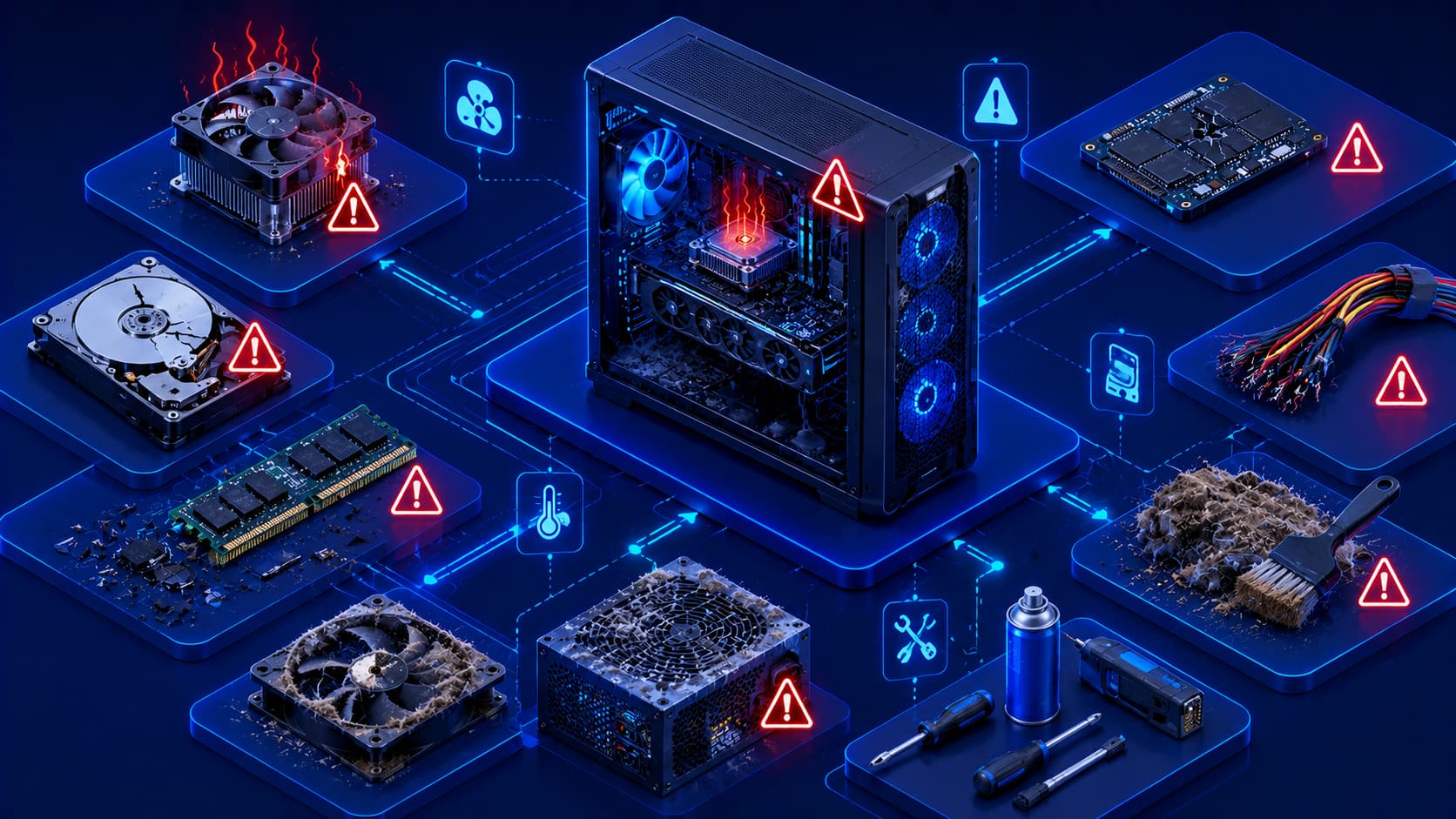
Heat is one of the most common factors affecting computer hardware. Processors, graphics hardware, storage devices, and power components all generate heat during normal operation.
If cooling becomes inadequate, excessive temperatures may:
- Reduce system performance.
- Cause unexpected shutdowns.
- Shorten the lifespan of hardware components.
Common causes of overheating include:
- Dust buildup.
- Blocked air vents.
- Poor airflow.
- High ambient temperatures.
- Heavy workloads.
Keeping ventilation openings clear and ensuring adequate airflow are simple but effective ways to reduce overheating.
Practical Example
A laptop placed on a soft surface such as a bed or pillow may have its air vents blocked.
As the internal temperature rises:
- Cooling fans work harder.
- Performance may decrease because of thermal throttling.
- The computer may unexpectedly shut down to protect internal components.
Using the laptop on a hard, flat surface allows air to circulate more effectively and helps maintain safe operating temperatures.
2. Dust Accumulation
Dust may appear harmless, but over time it can significantly reduce cooling efficiency. It gradually collects inside cooling fans, air filters, heatsinks, and ventilation openings, restricting airflow and increasing operating temperatures.
As dust builds up, cooling components become less effective, forcing the system to operate at higher temperatures during everyday tasks.
Regular cleaning helps:
- Maintain proper airflow.
- Improve cooling efficiency.
- Reduce heat buildup.
- Support long-term hardware reliability.
Editorial Insight
Dust accumulation is one of the easiest hardware problems to prevent. A few minutes of periodic cleaning can significantly improve airflow and reduce unnecessary stress on critical components such as the CPU, GPU, and power supply.
3. Storage Problems
Storage devices naturally experience wear throughout their lifespan. While many drives remain reliable for years, they can eventually develop problems that affect performance or data integrity.
Possible warning signs include:
- Slow file access.
- Applications taking longer to load.
- Unexpected read or write errors.
- Frequent operating system warnings.
Although modern storage devices are generally dependable, failures can occur without much notice. Maintaining current backups remains essential to protect important files.
Best Practice
If you begin noticing repeated storage errors or unusually slow file access:
- Back up important files immediately.
- Monitor the issue rather than ignoring it.
- Avoid waiting until the drive completely fails before protecting your data.
4. Loose or Damaged Connections
Computers rely on many physical connections to function correctly. Power cables, display cables, storage connections, USB devices, and internal connectors may occasionally become loose over time.
A simple connection problem can sometimes produce symptoms that resemble major hardware failures, such as:
- A monitor displaying no signal.
- USB devices not being detected.
- Storage drives appearing to disappear.
- Unexpected startup problems.
For this reason, checking cable connections is often one of the first troubleshooting steps when diagnosing hardware issues.
Practical Example
If your monitor suddenly displays a "No Signal" message, the graphics card may not actually be defective.
Before assuming the worst, check whether:
- The display cable is securely connected.
- The monitor is powered on.
- The correct input source is selected.
- The cable itself is damaged.
These simple checks can often resolve the issue without requiring hardware replacement.
5. Unexpected Power Problems
Power interruptions and unstable electrical conditions can affect the normal operation of a computer. Unexpected shutdowns not only interrupt your work but may also increase the risk of file corruption if unsaved changes are lost.
Using reliable power sources and shutting down your computer properly helps reduce unnecessary stress on hardware components.
Common causes of power-related issues include:
- Sudden power outages.
- Unstable electrical supply.
- Improper shutdowns.
- Faulty power cables or adapters.
Although occasional power interruptions are unavoidable, taking simple precautions can help minimize potential damage.
Practical Example
Imagine you're editing an important document when the power suddenly goes out.
Without backup power:
- The computer shuts down immediately.
- Unsaved work may be lost.
- Open files may become corrupted.
Using a UPS (Uninterruptible Power Supply) or regularly saving your work can greatly reduce the impact of unexpected power failures.
6. Battery Wear (Portable Devices)
Laptop batteries naturally lose capacity over time. As batteries age, users may begin to notice several changes in everyday performance.
Common signs of battery wear include:
- Shorter battery life.
- Longer charging times.
- Unexpected shutdowns.
- Reduced performance during heavy workloads.
Battery aging is a normal part of a laptop's lifecycle. However, avoiding excessive heat and following good charging practices can help extend battery lifespan.
Editorial Insight
Many users assume a battery has failed simply because it doesn't last as long as it once did. In reality, gradual capacity loss is expected for rechargeable batteries. Replacing the battery after years of regular use is often a normal maintenance task rather than an indication of a defective laptop.
7. Cooling Fan Issues
Cooling fans play a critical role in maintaining safe operating temperatures. Over time, fans may accumulate dust, become noisy, or experience mechanical wear.
Signs of potential fan problems include:
- Unusual grinding or rattling noises.
- Constant high fan speeds.
- Frequent overheating.
- Unexpected thermal shutdowns.
If cooling performance decreases significantly, the fan or cooling system may require inspection or maintenance. Ignoring unusual fan behavior can allow temperatures to rise and place additional stress on other hardware components.
Best Practice
If your computer suddenly becomes much louder than usual or the cooling fan runs at maximum speed for extended periods, inspect the cooling system before assuming a more serious hardware failure. Cleaning accumulated dust often restores normal airflow and improves cooling efficiency.
8. Memory-Related Problems
Although Random Access Memory (RAM) is generally reliable, problems can occasionally occur. Because memory errors can affect many different parts of the operating system, their symptoms are often difficult to identify.
Possible signs of memory-related issues include:
- Random system crashes.
- Application instability.
- Unexpected restarts.
- Startup errors.
Since many different hardware and software problems can produce similar symptoms, RAM should be evaluated alongside other system components during troubleshooting rather than being assumed to be the sole cause.
Practical Example
Suppose your computer crashes randomly while performing different tasks.
The problem could be related to:
- Faulty memory.
- Software conflicts.
- Driver issues.
- Storage problems.
Systematic troubleshooting helps identify the actual cause instead of replacing hardware unnecessarily.
9. Peripheral Device Failures
External hardware such as keyboards, mice, printers, webcams, monitors, and USB devices may occasionally stop functioning correctly.
Potential causes include:
- Loose cables.
- Worn connectors.
- Driver-related issues.
- Physical damage.
- Power problems.
Testing the device on another computer or verifying cable connections can often help determine whether the issue lies with the peripheral itself or the computer.
Editorial Insight
Peripheral problems are frequently mistaken for major computer failures. Before replacing hardware, perform simple checks such as reconnecting cables, trying a different USB port, or testing the device on another system. These quick steps can often resolve the issue with minimal effort.
10. Physical Damage
Accidental drops, liquid spills, excessive force, or improper transportation can damage computer hardware. While some forms of damage are immediately visible, internal components may also be affected even when the exterior appears normal.
Common causes of physical damage include:
- Dropping a laptop.
- Spilling liquids onto the keyboard.
- Applying excessive pressure during transport.
- Carrying devices without adequate protection.
Although not every accident causes permanent damage, careful handling greatly reduces the likelihood of costly repairs.
Best Practice
Protect your computer by:
- Using a protective carrying case for laptops.
- Keeping drinks away from electronic devices.
- Avoiding excessive pressure on the screen.
- Transporting desktop components securely when moving them.
Simple preventive habits can significantly reduce the risk of accidental hardware damage.
Preventive Maintenance Matters
Many hardware problems can be minimized through regular maintenance. Preventive care not only improves system reliability but also helps extend the lifespan of critical components.
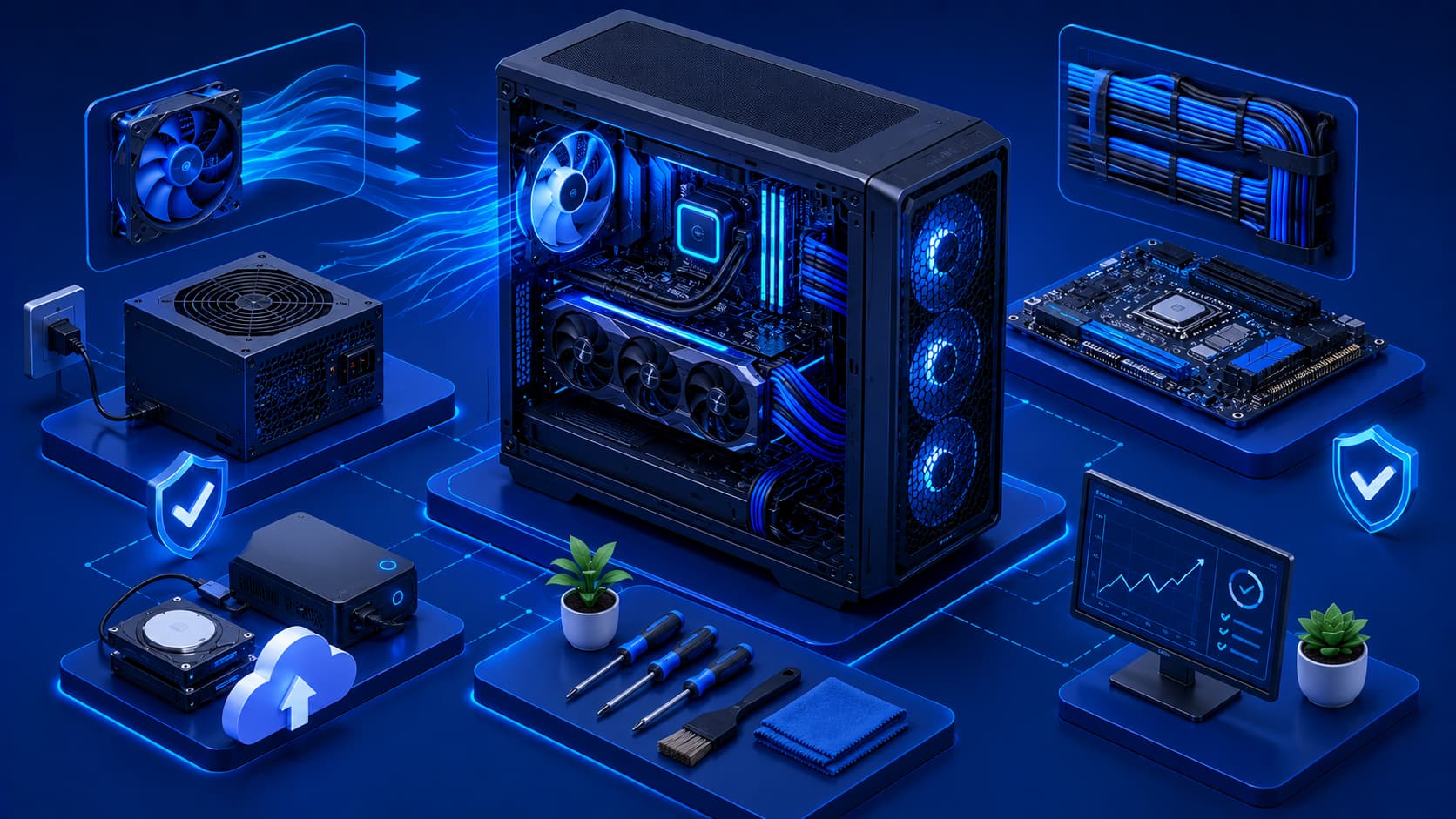
Good maintenance practices include:
- Keeping the computer clean.
- Ensuring proper airflow.
- Installing hardware securely.
- Shutting down the system properly.
- Backing up important data.
- Protecting equipment from physical damage.
- Using stable electrical power.
- Monitoring unusual sounds or temperatures.
These simple habits can reduce unexpected downtime while helping your computer perform more reliably over the long term.
Editorial Insight
Preventive maintenance is often overlooked because it doesn't produce immediate performance improvements. However, small routine actions—such as cleaning dust, checking cooling performance, and maintaining backups—can prevent many common hardware problems before they become expensive repairs.
Common Misconceptions About Hardware Failures
Understanding how hardware typically fails can help users respond more effectively when problems occur.
Hardware Doesn't Usually Fail Without Warning
Although sudden failures can occur, many hardware components display warning signs before they stop functioning completely.
These warning signs may include:
- Unusual noises.
- Overheating.
- Slower performance.
- Repeated system instability.
Recognizing these symptoms early allows users to investigate problems before they become more serious.
Slow Performance Doesn't Always Mean Hardware Failure
A slow computer is not necessarily experiencing a hardware problem. Software issues, insufficient available storage, too many background applications, or an outdated operating system can also reduce performance.
Effective troubleshooting should always consider both hardware and software before replacing components.
New Hardware Still Requires Maintenance
Modern components are highly reliable, but they are not maintenance-free. Keeping systems clean, ensuring adequate cooling, and using hardware responsibly remain important regardless of the computer's age.
Frequently Asked Questions
What Is the Most Common Hardware Problem?
Overheating is one of the most common hardware-related issues because excessive heat can affect performance, stability, and the long-term reliability of computer components.
How Can I Reduce the Risk of Hardware Failure?
Regular cleaning, proper ventilation, careful handling, stable power sources, and routine backups all help improve long-term hardware reliability.
Can Dust Really Damage a Computer?
Dust itself is usually not harmful, but excessive dust can reduce airflow, increase operating temperatures, and contribute to overheating.
Should I Replace Hardware as Soon as It Becomes Older?
Not necessarily.
Many hardware components continue operating reliably for years when properly maintained. Replacement decisions should be based on performance requirements, compatibility, or confirmed hardware failure rather than age alone.
Why Are Backups Important If Hardware Seems Healthy?
Hardware failures can occur unexpectedly.
Regular backups protect important files regardless of the current condition of the computer, reducing the risk of permanent data loss.
Conclusion
Computer hardware is designed for long-term reliability, but every physical component experiences wear over time. Understanding common hardware problems—such as overheating, dust accumulation, storage issues, cooling failures, and power-related concerns—helps users recognize warning signs before they develop into serious failures.
Fortunately, many hardware problems can be minimized through routine maintenance, careful handling, and good operating habits. By keeping hardware clean, monitoring system health, maintaining reliable backups, and addressing small issues early, users can improve system stability, extend hardware lifespan, and reduce unexpected downtime.
Final Takeaway
No computer hardware lasts forever, but many failures are preventable or can be detected early. Paying attention to warning signs, performing routine maintenance, and protecting your data with regular backups are simple yet effective habits that help keep your computer running reliably for years.
Rather than waiting for a major failure, taking a proactive approach to hardware care can save time, reduce repair costs, and minimize the risk of unexpected data loss.