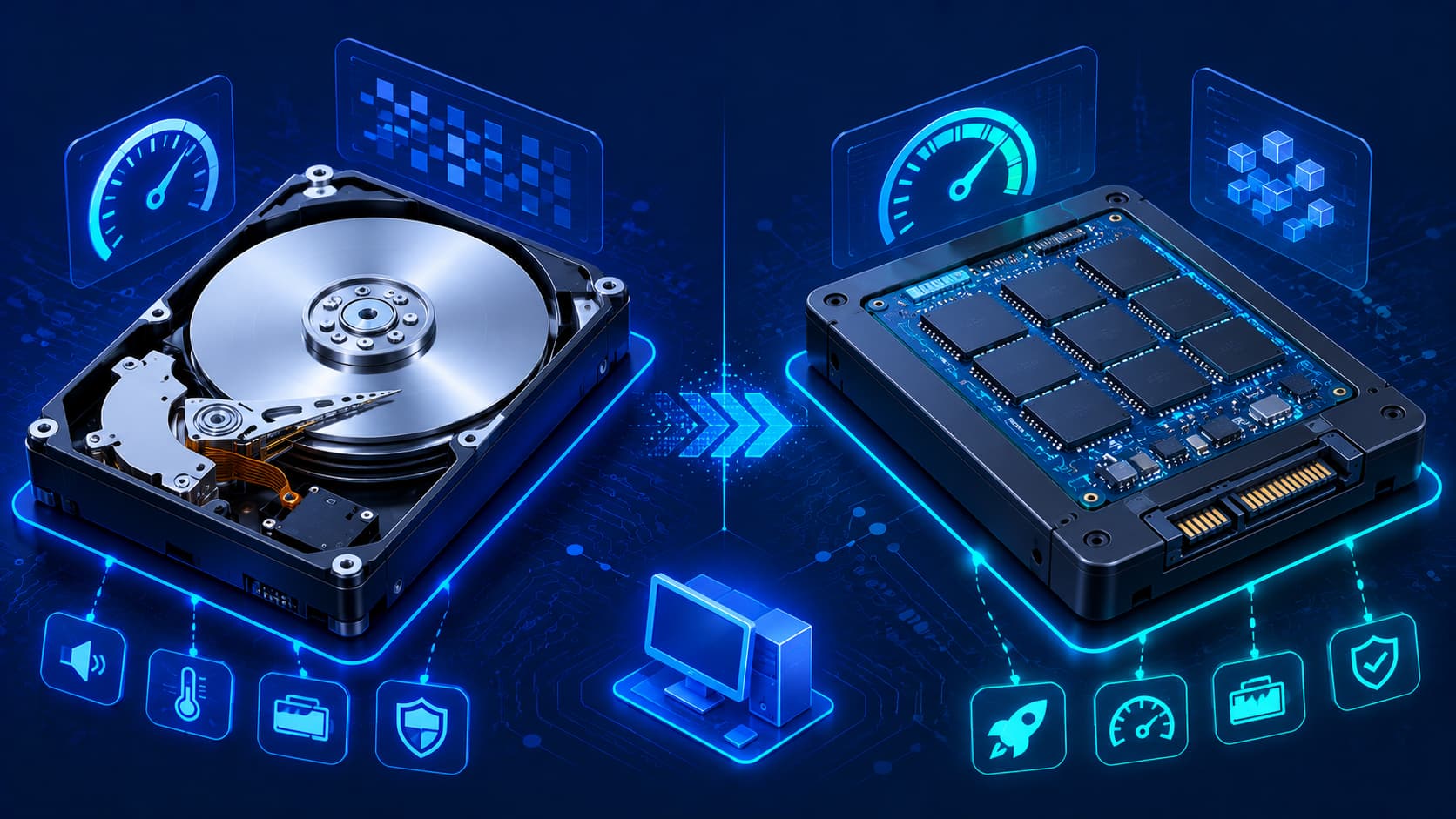
Every computer needs a place to store information permanently. When you save a document, install an application, download photos, or record videos, that information must remain available even after the computer is turned off. This responsibility belongs to the computer's storage device.
For many years, Hard Disk Drives (HDDs) were the standard storage technology used in personal computers. Today, Solid-State Drives (SSDs) have become increasingly popular because they offer significantly faster performance while using a completely different storage technology.
Although both devices serve the same fundamental purpose, they differ in speed, durability, power consumption, and overall user experience. Understanding these differences helps you choose the storage solution that best matches your needs.
What Is an HDD?
A Hard Disk Drive (HDD) is a storage device that records data on rapidly spinning magnetic disks. Inside the drive, mechanical components move a read/write head across the disk surface to access information.
Because HDDs rely on moving parts, reading and writing data takes more time than with modern solid-state storage.
Despite this limitation, HDDs continue to provide reliable long-term storage and are widely appreciated for offering large storage capacities at relatively affordable prices. This makes them a practical choice for users who need to store extensive collections of files without a significant investment.
Practical Example
An HDD is well suited for storing:
- Large photo libraries.
- Video collections.
- Music archives.
- Backup files.
- Documents that don't require frequent access.
Although opening files from an HDD may take slightly longer than from an SSD, it remains an economical solution for storing large amounts of data.
What Is an SSD?
A Solid-State Drive (SSD) stores data using flash memory instead of spinning magnetic disks. Unlike an HDD, an SSD contains no moving mechanical parts.
Because information is accessed electronically, SSDs can retrieve and save data much more quickly than traditional hard drives.
This results in:
- Faster system startup.
- Shorter application loading times.
- Quicker file transfers.
- A more responsive computing experience.
As SSD technology has become more widely available and affordable, it has become the preferred storage option for many modern computers.
Editorial Insight
Many users notice the biggest improvement after upgrading from an HDD to an SSD. Even if the processor and memory remain unchanged, everyday tasks such as booting the operating system, launching applications, and opening large files often feel dramatically faster because storage is no longer the primary bottleneck.
Similar Purpose, Different Technology
Although HDDs and SSDs use different technologies, they serve the same fundamental purpose: permanently storing data.
Both types of storage can hold:
- Operating systems.
- Software applications.
- Documents.
- Photos.
- Videos.
- Games.
- Personal files.
The key difference lies in how data is stored and retrieved.
- HDDs rely on mechanical movement.
- SSDs rely on electronic flash memory.
This technological difference has a significant impact on performance, reliability, and overall user experience.
How Storage Works with Other Hardware
Storage is only one part of a complete computer system. When you open an application, the operating system loads the necessary files from storage into RAM, where they become immediately accessible to the CPU. The processor then executes the instructions stored in memory.
This close cooperation between storage, memory, and the processor allows applications to launch and operate efficiently.
Faster storage reduces the amount of time required to load data into RAM, improving the overall responsiveness of the computer. While storage doesn't directly perform calculations, it plays a critical role in determining how quickly software becomes ready for use.
Practical Example
When you open a large video editing application:
- The software is read from storage.
- The operating system loads the required files into RAM.
- The CPU begins executing the program.
- The application becomes ready for use.
With an SSD, this process typically completes much faster than with an HDD because data can be retrieved far more quickly.
HDD vs SSD Performance
The most noticeable difference between Hard Disk Drives (HDDs) and Solid-State Drives (SSDs) is performance. Because SSDs access data electronically instead of relying on moving mechanical parts, they can retrieve information much more quickly.
In everyday use, this often results in:
- Faster system startup.
- Quicker application launches.
- Reduced file transfer times.
- More responsive multitasking.
- Shorter loading screens.
HDDs remain capable storage devices, but they generally require more time to access data due to the movement of their internal components. For users who prioritize speed and responsiveness, an SSD typically provides a noticeably smoother experience.
Practical Example
Imagine turning on two computers with identical processors and memory:
- One uses an HDD.
- The other uses an SSD.
The computer equipped with an SSD will usually boot faster, open applications more quickly, and load files with less waiting time because its storage can access data much more efficiently.
Reliability and Durability
HDDs and SSDs also differ in how they handle physical movement and everyday use.
HDD Durability
Since HDDs contain spinning disks and moving read/write heads, they are generally more sensitive to strong impacts or sudden movement while operating. Proper handling helps reduce the risk of physical damage.
Although modern hard drives are reliable under normal conditions, dropping or shaking a computer while the drive is actively reading or writing data may increase the risk of hardware failure.
SSD Durability
Because SSDs contain no moving mechanical parts, they are generally more resistant to vibration and accidental movement during normal use. This characteristic has made SSDs especially popular in laptops and other portable devices.
However, regardless of which storage technology you choose, regular backups remain essential, as no storage device lasts forever.
Editorial Insight
Durability should never be confused with permanence. While SSDs are generally more resistant to physical shock and HDDs can provide years of dependable service, both devices can eventually fail. Maintaining current backups is still one of the most important practices for protecting valuable data.
Storage Capacity
Both HDDs and SSDs are available in a wide range of capacities. Historically, HDDs have been known for offering larger capacities at lower prices, making them attractive for storing large collections of photos, videos, backups, and archived files.
SSDs are also available in increasingly larger capacities, and ongoing advances in storage technology continue to expand the options available to users.
Ultimately, the ideal capacity depends on how you use your computer, not simply on whether you choose an HDD or an SSD.
Best Practice
Before selecting a storage capacity, consider your typical workload.
For example:
- Office users often need modest storage for documents and applications.
- Photographers and video editors typically require significantly more space.
- Gamers may benefit from larger drives because modern games can occupy hundreds of gigabytes.
Choosing storage based on actual usage helps balance cost, performance, and available space.
Power Efficiency
Storage devices also influence power consumption. Because SSDs have no moving mechanical components, they generally consume less power during normal operation.
Lower power usage can contribute to:
- Improved battery life in laptops.
- Reduced energy consumption.
- Lower heat generation during everyday use.
By comparison, HDDs require energy to keep their magnetic disks spinning while operating, although they remain efficient for many long-term storage applications.
Which Storage Type Is Better?
Neither HDDs nor SSDs are universally better. Each technology offers strengths that make it suitable for different situations.
An SSD may be the better choice if you prioritize:
- Fast system startup.
- Quick application loading.
- Responsive multitasking.
- A computer that is frequently transported.
An HDD may be more appropriate if your priorities include:
- Large storage capacity.
- Long-term file storage.
- Lower overall cost.
Many modern computers successfully combine both technologies by using an SSD for the operating system and frequently used applications, while storing larger files on an HDD. This hybrid approach provides a balance between speed, capacity, and affordability.
Common Misconceptions About HDDs and SSDs
Understanding how storage devices work helps clear up several common misconceptions.
SSDs Do More Than Improve Boot Time
Many people believe that an SSD only makes a computer start faster. In reality, SSDs can also improve application loading, file transfers, software updates, and many other everyday computing tasks.
Because SSDs retrieve data much more quickly than HDDs, they help reduce waiting times throughout the operating system—not just during startup.
HDDs Are Not Obsolete
Although SSD adoption continues to grow, HDDs remain widely used for backups, large media libraries, archival storage, and systems where high storage capacity is more important than maximum speed.
For many businesses and home users, HDDs continue to provide an affordable solution for storing large amounts of data.
Storage Capacity Doesn't Increase Performance by Itself
A larger storage device provides more space for files, but capacity alone does not determine system performance. Performance depends on the storage technology, processor, available memory, and overall system configuration.
For example, replacing a 500 GB SSD with a 2 TB SSD may give you more storage space, but it won't necessarily make the computer noticeably faster if both drives offer similar performance.
Best Practice
Choose a storage solution based on your actual needs rather than focusing on a single specification.
- If you value speed and responsiveness, prioritize an SSD.
- If you need affordable, high-capacity storage, an HDD may be the better option.
- If your computer supports both, combining an SSD and an HDD often delivers the best balance of performance and capacity.
Frequently Asked Questions
What Is the Main Difference Between an HDD and an SSD?
An HDD stores data on spinning magnetic disks, while an SSD stores data electronically using flash memory. This difference allows SSDs to access data much more quickly.
Is an SSD Always Faster Than an HDD?
For most everyday computing tasks, yes. SSDs generally provide significantly faster access to data, resulting in a more responsive user experience.
Can I Use Both an HDD and an SSD in the Same Computer?
Yes.
Many desktop computers and some laptops support both storage types, allowing users to combine fast application loading with large-capacity file storage.
Which Storage Device Is Better for Everyday Users?
The answer depends on individual needs.
Many users appreciate the speed and responsiveness of SSDs, while others value the larger capacities and lower cost per gigabyte often associated with HDDs. Some systems benefit from using both together.
Do SSDs Last Forever?
No.
Like all storage devices, SSDs have a finite lifespan. However, with normal use and regular backups, they can provide many years of reliable service.
Conclusion
Both Hard Disk Drives (HDDs) and Solid-State Drives (SSDs) provide permanent storage for operating systems, applications, and personal files, but they achieve this using very different technologies. HDDs continue to offer dependable, high-capacity storage, while SSDs deliver much faster access to data and a more responsive computing experience.
Choosing the right storage solution depends on your priorities—whether you value speed, capacity, budget, or a balance of all three. Understanding how storage works alongside the CPU and RAM also provides a clearer picture of how modern computers achieve both strong performance and reliable long-term data storage.
Final Takeaway
Storage is one of the most important components influencing your everyday computing experience. While HDDs remain an excellent choice for affordable, high-capacity storage, SSDs have become the preferred option for users who prioritize speed and responsiveness.
Rather than asking which technology is universally better, it's more useful to consider which storage solution best matches your workload. For many modern computers, combining an SSD for the operating system and frequently used applications with an HDD for large files provides an excellent balance of performance, storage capacity, and value.